Slow internet speeds and weak Wi-Fi signals can turn simple online tasks into frustrating experiences. Whether you’re trying to stream Netflix in the living room or join a video call from your home office, poor broadband signal strength affects every corner of your digital life.
The good news? Most signal problems have straightforward solutions that don’t require technical expertise or expensive equipment. Many UK households experience unnecessary connectivity issues simply because their router is in the wrong location or their settings need adjusting.
This guide walks you through practical steps to improve your broadband signal strength, from basic positioning changes to advanced hardware solutions. You’ll discover which factors impact your Wi-Fi performance and learn how to optimise your home network for reliable, fast internet throughout your property.
Understanding Broadband Signal Strength Issues
Your broadband signal strength depends on multiple factors working together. The signal travels from your internet service provider through various infrastructure points before reaching your router, then broadcasts wirelessly throughout your home.
Physical obstacles create the most common signal problems. Walls, floors, and ceilings all reduce Wi-Fi strength, with different materials causing varying levels of interference. Thick stone walls in older UK homes can cut signal strength by up to 70%, while modern plasterboard typically reduces it by around 10-15%.
Distance plays a crucial role in signal quality. Wi-Fi signal strength decreases exponentially with distance from your router. A device 10 metres away might receive only 25% of the signal strength compared to one placed 2 metres away. This explains why your internet works perfectly near the router but struggles upstairs or in the garden.
Electronic interference affects signal quality even when your router is perfectly positioned. Microwave ovens, baby monitors, and Bluetooth devices all operate on similar frequencies to your Wi-Fi network. When these devices are active, they can cause temporary slowdowns or connection drops.
The 2.4GHz frequency band, used by most household devices, becomes overcrowded in densely populated areas. If you live in a flat or terraced house, neighbouring Wi-Fi networks can interfere with yours. Urban areas often have dozens of networks competing for the same frequencies, creating invisible traffic jams that slow everyone’s internet.
Network congestion within your own home also impacts performance. Modern households connect numerous devices simultaneously – smartphones, tablets, laptops, smart TVs, and IoT devices. Each device consumes bandwidth, and older routers struggle to manage multiple high-demand activities like streaming and gaming happening at once.
Optimal Router Placement for Better Signal Coverage
Router placement dramatically affects your Wi-Fi coverage and signal strength. The wrong location can reduce your effective internet speed by 50% or more, regardless of how fast your broadband package actually is.
Place your router in a central location within your home. Wi-Fi signals spread outward in all directions, so positioning the router centrally ensures more even coverage throughout your property. Avoid corners, cupboards, or rooms at one end of your house, as these locations create dead zones in distant areas.
Height matters for signal distribution. Position your router at least one metre off the ground, ideally on a shelf or mounted on a wall. Wi-Fi signals travel better when broadcast from an elevated position, as they can clear low-level obstacles more easily. Avoid placing routers on the floor, where furniture and foot traffic can block signals.
Keep your router away from thick walls and metal objects. Wi-Fi struggles to penetrate dense materials like concrete, brick, and metal. If you must place your router near a wall, choose an internal plasterboard wall rather than an external brick or stone wall. Metal filing cabinets, radiators, and large appliances can reflect or absorb Wi-Fi signals, creating interference patterns.
Maintain clear space around your router. Leave at least 20 centimetres of open space on all sides to allow proper ventilation and signal propagation. Crowded shelves, closed cabinets, and cluttered areas restrict airflow and can cause overheating, which reduces router performance.
Consider your home’s layout when choosing router placement. For multi-storey homes, position the router on the middle floor if possible. This approach provides more balanced coverage between upper and lower levels. If most of your internet usage happens on one floor, prioritise that level for router placement.
External walls should be avoided for router placement, especially those facing neighbouring properties. These locations often provide poor signal distribution within your home and can create unnecessary interference with neighbouring networks.
Minimising Interference: What Affects Your Wi-Fi?
Electronic devices throughout your home can interfere with Wi-Fi signals, causing slowdowns, connection drops, and reduced range. Identifying and managing these interference sources significantly improves your broadband performance.
Microwave ovens create powerful interference on the 2.4GHz band. When operating, microwaves can completely disrupt Wi-Fi connections for devices in the same room. This interference is temporary but intense – your internet will recover once the microwave stops running. Position your router away from the kitchen area, or switch to 5GHz Wi-Fi if your devices support it.
Baby monitors and cordless phones often use the same frequencies as Wi-Fi networks. Older DECT phones and analogue baby monitors can cause persistent interference, especially when actively transmitting. Digital Enhanced Cordless Telecommunications (DECT) phones operating on 1.9GHz cause less interference but can still affect Wi-Fi performance if placed too close to your router.
Bluetooth devices create brief but frequent interference patterns. While individual Bluetooth transmissions are weak, devices like wireless headphones, keyboards, and mice constantly send small data packets that can disrupt Wi-Fi signals. This interference typically manifests as occasional slowdowns rather than complete connection loss.
Neighbouring Wi-Fi networks contribute to interference, particularly in urban areas. Use your phone’s Wi-Fi settings to scan for nearby networks and identify how many are operating on the same channel as yours. If you can see more than five networks with strong signals, channel congestion is likely affecting your performance.
Smart home devices can overload your network with constant communication. Security cameras, smart thermostats, and voice assistants continuously send data, even when not actively being used. While this traffic is usually small, dozens of IoT devices can collectively consume significant bandwidth and processing power from your router.
Large metal objects reflect Wi-Fi signals, creating dead zones and unpredictable coverage patterns. Refrigerators, washing machines, and metal shelving units can bounce signals away from where you need them most. Map your home’s Wi-Fi coverage using a smartphone app to identify these reflection-caused dead zones.
Utilising Wi-Fi Extenders & Mesh Systems
Wi-Fi extenders and mesh systems solve coverage problems in larger homes or properties with challenging layouts. These devices work differently and suit different scenarios, so choosing the right solution depends on your specific needs and budget.
Wi-Fi extenders, also called boosters or repeaters, capture your existing Wi-Fi signal and rebroadcast it to extend coverage range. They’re ideal for addressing specific dead zones or extending coverage to outbuildings like garages or garden offices. Modern extenders can add 50-100 metres of additional coverage, depending on your home’s construction and interference levels.
Position extenders carefully for optimal performance. Place them roughly halfway between your router and the area needing better coverage, ensuring the extender still receives a strong signal from your main router. Extenders that receive weak signals will only broadcast weak signals, so avoid placing them too far from your original router.
Powerline adapters offer an alternative to traditional Wi-Fi extenders. These devices use your home’s electrical wiring to carry internet signals, then broadcast Wi-Fi from distant locations. Powerline solutions work well in older homes with thick walls that block Wi-Fi signals, though performance depends on your electrical wiring quality and age.
Mesh systems provide seamless coverage throughout your home using multiple access points that work together. Unlike extenders, mesh networks create a single network name that automatically connects devices to the strongest signal point. This technology suits larger homes or properties with complex layouts where multiple dead zones exist.
Modern mesh systems include advanced features like band steering and load balancing. Band steering automatically connects devices to the optimal frequency (2.4GHz or 5GHz) based on their capabilities and current network conditions. Load balancing distributes devices across multiple access points to prevent any single point from becoming overloaded.
Consider your internet package when choosing extension solutions. Adding extenders or mesh points won’t increase your total internet speed – they only improve distribution of your existing bandwidth. If your broadband package provides 50Mbps, that’s still your maximum speed regardless of how many extenders you install.
Optimising Your Router Settings for Performance
Router configuration significantly impacts your broadband performance, yet most users never adjust their settings beyond the initial setup. Simple changes can improve speed, reduce interference, and provide better coverage throughout your home.
Access your router’s admin panel through a web browser. Type your router’s IP address (usually 192.168.1.1 or 192.168.0.1) into your browser’s address bar and log in using the credentials printed on your router. If you’ve never changed these, they’re typically “admin” for both username and password.
Change your Wi-Fi channel to reduce interference from neighbouring networks. Most routers automatically select channels, but this doesn’t always choose the best option. For 2.4GHz networks, channels 1, 6, and 11 don’t overlap with each other. Use a Wi-Fi analyzer app to identify which channels have the least traffic in your area, then manually set your router to use a less crowded channel.
Enable Quality of Service (QoS) settings to prioritise important traffic. QoS allows you to allocate bandwidth to specific devices or applications, ensuring smooth performance for activities like video calls or streaming even when other devices are downloading large files. Set high priority for devices used for work or entertainment, and lower priority for background activities like software updates.
Update your router’s firmware regularly to maintain optimal performance and security. Manufacturers release firmware updates that fix bugs, improve performance, and patch security vulnerabilities. Enable automatic updates if available, or check your router manufacturer’s website monthly for new firmware versions.
Adjust your Wi-Fi security settings for optimal balance between security and performance. WPA3 provides the best security but isn’t supported by all devices. WPA2 offers excellent security with broad device compatibility. Avoid WEP security, which is outdated and can actually slow your network while providing poor protection.
Configure separate 2.4GHz and 5GHz networks if your router broadcasts both frequencies under one network name. This separation allows you to connect devices to the most appropriate frequency manually. Use 2.4GHz for smart home devices and 5GHz for smartphones, laptops, and streaming devices that need higher speeds.
Set appropriate transmit power levels for your environment. Maximum power isn’t always optimal – it can cause interference and reduce battery life on connected devices. Most homes perform better with transmit power set to 75% of maximum, which provides good coverage while minimising interference.
Evaluating Your Wi-Fi Hardware: Is it Time for an Upgrade?
Outdated router hardware often becomes the bottleneck limiting your broadband performance, regardless of how fast your internet package actually is. Recognising when your equipment needs upgrading can dramatically improve your online experience.
Router age significantly impacts performance capabilities. Routers older than four years typically use outdated Wi-Fi standards that can’t fully utilise modern broadband speeds. Wi-Fi 5 (802.11ac) routers from 2015-2018 may struggle with multiple high-bandwidth devices, while Wi-Fi 6 (802.11ax) routers handle modern household demands much more effectively.
Check your router’s maximum supported speeds against your broadband package. Many older routers cap out at 100Mbps or 300Mbps, even though your internet package might provide much faster speeds. If your router’s specifications show lower speeds than your broadband package offers, hardware limitations are definitely affecting your performance.
Device connection limits become apparent in busy households. Older routers typically handle 10-15 connected devices reasonably well, but modern homes often have 20-50 connected devices including smartphones, tablets, smart TVs, security cameras, and IoT devices. If your internet slows significantly when multiple devices are active, your router may lack the processing power for current demands.
Wi-Fi coverage area requirements have grown as homes become more connected. Routers from five years ago were designed when most internet usage happened in one or two rooms. Today’s households need reliable Wi-Fi in bedrooms, kitchens, gardens, and home offices. If you’re considering extenders purely because of poor coverage, a modern router with better antennas might provide adequate coverage alone.
Processing power limitations become evident during peak usage times. Older routers use less powerful processors that struggle with multiple simultaneous activities like streaming 4K video, video conferencing, and file downloads. If your internet becomes unreliable during busy periods but works fine during quiet times, processor limitations are likely the cause.
Modern router features can significantly improve your internet experience. Wi-Fi 6 routers include technologies like OFDMA (Orthogonal Frequency Division Multiple Access) that improve efficiency when serving multiple devices. MU-MIMO (Multi-User Multiple-Input Multiple-Output) allows routers to communicate with several devices simultaneously rather than taking turns.
Security considerations also factor into upgrade decisions. Routers that no longer receive security updates become vulnerable to attacks and may perform poorly due to unpatched software issues. If your router manufacturer no longer supports your model with firmware updates, replacement should be a priority.
Contacting Your Broadband Provider for Support
Your broadband provider plays a crucial role in your internet performance and can often resolve signal strength issues that hardware changes cannot fix. Knowing when and how to contact your provider ensures you get the most from your internet service.
Line quality issues require provider intervention to resolve. Problems with your physical connection – whether fibre, cable, or copper – can only be addressed by your broadband provider or Openreach engineers. Symptoms include consistently slow speeds across all devices, frequent disconnections, or speeds significantly below your package specifications.
Request a line test when experiencing persistent speed problems. Most UK providers can run remote diagnostics on your connection to identify faults, interference, or signal degradation. This test reveals whether problems originate from your internal network or the external infrastructure. Many providers offer automated testing through their websites or mobile apps.
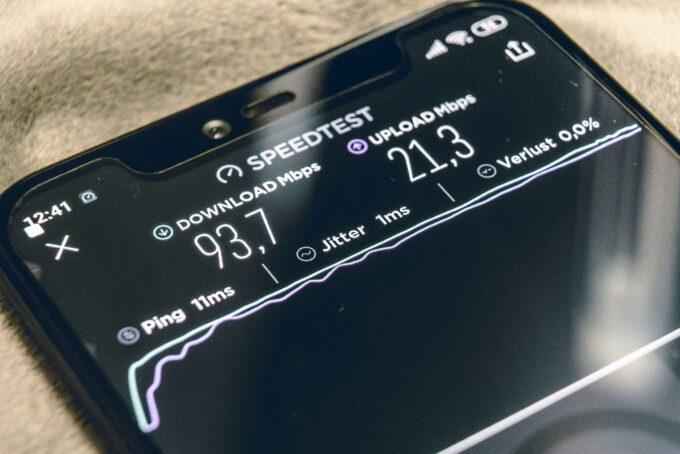
Document speed test results before contacting support. Use multiple speed testing websites at different times of day and from various devices connected via ethernet cable rather than Wi-Fi. This data helps support teams understand whether issues are consistent or intermittent, affecting all devices or specific ones.
Peak time slowdowns might indicate network congestion in your area. If your speeds drop significantly during evenings and weekends but perform well during weekday mornings, your local network infrastructure may be oversubscribed. Providers can sometimes resolve this by upgrading local equipment or adjusting traffic management.
Check for planned maintenance or known faults in your area before calling. Most providers maintain status pages showing current outages, planned work, and known issues affecting different regions. Twitter accounts often provide real-time updates about service problems and estimated resolution times.
Consider upgrade options if your current package doesn’t meet your household’s needs. Internet usage has increased dramatically over recent years, and packages that seemed adequate two years ago might now be insufficient. Discuss your usage patterns with your provider to identify whether a faster package would resolve your performance concerns.
Request engineer visits for persistent problems that remote diagnostics cannot resolve. Engineers can test signal strength at various points in your connection, identify interference sources, and check equipment that isn’t accessible to customers. Most providers offer these visits free of charge when clear faults exist.
FAQs: Improving Broadband Signal
How can I test my broadband speed accurately?
Use a wired ethernet connection to eliminate Wi-Fi variables from your test. Run speed tests from multiple websites like Speedtest.net, Fast.com, and your provider’s own testing tool. Test at different times of day to identify whether slowdowns occur during specific periods. Take several measurements and calculate the average for more reliable results.
Why is my Wi-Fi slower upstairs than downstairs?
Wi-Fi signals weaken as they travel through floors and ceilings. The distance from your router, combined with obstacles like floor joists and plumbing, reduces signal strength on different levels. Consider moving your router to a more central location or adding a Wi-Fi extender on the upper floor for better coverage.
Do weather conditions affect my broadband signal?
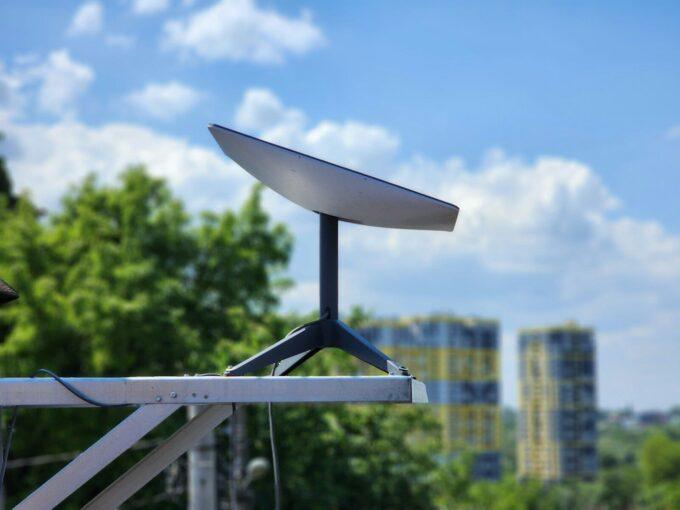
Weather can impact some broadband technologies, particularly satellite internet and some wireless connections. Heavy rain can cause signal attenuation in satellite systems, while extreme temperatures might affect outdoor equipment performance. Fibre and cable connections are generally unaffected by normal weather conditions.
Should I restart my router regularly?
Monthly router restarts can improve performance by clearing temporary files, refreshing network connections, and installing pending updates. Some routers include automatic restart scheduling in their settings. If you experience frequent slowdowns or connection issues, try restarting your router before investigating other causes.
How many devices can my router handle simultaneously?
This depends on your router’s specifications and your internet package speed. Older routers typically handle 10-20 devices adequately, while modern Wi-Fi 6 routers can manage 50+ devices efficiently. However, bandwidth-intensive activities like 4K streaming or large downloads will reduce the effective capacity regardless of device limits.
Can my neighbours’ Wi-Fi affect my connection?
Yes, neighbouring networks can cause interference, especially on the 2.4GHz frequency band. This is particularly noticeable in flats, terraced houses, and densely populated areas. Using the 5GHz band or changing your Wi-Fi channel can reduce this interference. Wi-Fi analyzer apps help identify less crowded channels in your area.
When should I consider upgrading to a mesh system?
Mesh systems suit homes larger than 150 square metres, properties with multiple floors, or layouts with many walls and obstacles. If you need more than two Wi-Fi extenders to achieve adequate coverage, a mesh system often provides better performance and easier management. They’re also beneficial when you have more than 25 connected devices.
Is it worth paying for faster broadband if my Wi-Fi is slow?
Not necessarily. If your Wi-Fi hardware cannot deliver the speeds your current package provides, upgrading your internet won’t improve performance. Test your speeds using a wired connection first. If wired speeds match your package but Wi-Fi speeds are much slower, focus on improving your Wi-Fi setup rather than upgrading your broadband package.