Twitch streaming requires consistent upload bandwidth—not download speed. This catches many aspiring streamers off guard when their “fast” broadband can’t maintain stable streams.
Your viewers don’t care about your 500 Mbps download speed if your 10 Mbps upload can’t handle 1080p60fps streaming. Understanding upload requirements prevents dropped frames, buffering viewers, and ultimately failed streaming careers.
This guide breaks down exact upload speeds needed for every streaming quality, how to test your connection, and what to do if your broadband falls short.
Why Upload Speed Matters for Streaming
Streaming sends video from your computer to Twitch servers continuously. This outbound traffic uses your upload bandwidth.
Upload vs Download: The Critical Difference
Download speed: Data coming TO you (watching streams, browsing web, downloading files)
Upload speed: Data going FROM you (streaming, uploading videos, sending files)
Most UK broadband is asymmetric:
– FTTC: 67 Mbps download / 20 Mbps upload
– FTTP: 150 Mbps download / 30 Mbps upload
– Virgin Media: 350 Mbps download / 35 Mbps upload
That “superfast” marketing headline only tells download speed. Upload matters for streaming.
Twitch’s Official Requirements
Twitch recommends these upload speeds for different streaming qualities:
720p Streaming
720p at 30fps:
– Bitrate: 3,000 Kbps (3 Mbps)
– Minimum upload: 5 Mbps
– Recommended upload: 8 Mbps
720p at 60fps:
– Bitrate: 4,500 Kbps (4.5 Mbps)
– Minimum upload: 7 Mbps
– Recommended upload: 10 Mbps
1080p Streaming
1080p at 30fps:
– Bitrate: 4,500 Kbps (4.5 Mbps)
– Minimum upload: 7 Mbps
– Recommended upload: 10 Mbps
1080p at 60fps:
– Bitrate: 6,000 Kbps (6 Mbps)
– Minimum upload: 9 Mbps
– Recommended upload: 12-15 Mbps
4K Streaming (Not Officially Supported)
Twitch caps bitrate at 6,000 Kbps, making true 4K streaming impractical. Most streamers use 1080p60 as maximum quality.
The Safety Margin Rule
Never stream at your maximum upload speed. The golden rule:
Your upload speed should be 1.5-2x your streaming bitrate
Why this matters:
– Network fluctuations cause temporary speed drops
– Other devices use bandwidth simultaneously
– System overhead requires buffer capacity
– Games/applications also upload data
Example:
– Your upload speed: 20 Mbps
– Safe streaming bitrate: 8-10 Mbps maximum
– This allows 1080p60fps with breathing room
Stream at 15 Mbps on a 20 Mbps connection and you’ll experience dropped frames constantly.
UK Broadband Upload Speeds Reality
Understanding what different connection types actually deliver:
ADSL (Legacy)
– Download: Up to 17 Mbps
– Upload: 0.5-1 Mbps
– Streaming capability: Impossible for quality streaming
FTTC (Fibre to the Cabinet)
– Download: 35-80 Mbps
– Upload: 10-20 Mbps
– Streaming capability: 720p60 comfortably, 1080p30 possible
FTTP (Full Fibre)
– Download: 100-1000 Mbps
– Upload: 50-1000 Mbps (often symmetric)
– Streaming capability: Everything, including 1080p60 with headroom
Virgin Media Cable
– Download: 100-1100 Mbps
– Upload: 10-52 Mbps (depending on package)
– Streaming capability: Varies by package—check upload spec
5G Home Broadband
– Download: 100-300 Mbps
– Upload: 20-50 Mbps typical
– Streaming capability: Good for 1080p60 in covered areas
The catch: Virgin Media M250 offers 250 Mbps download but only 25 Mbps upload. Meanwhile FTTP 150 might offer 150 Mbps download AND 150 Mbps upload. For streaming, the latter wins despite lower download.
Testing Your Upload Speed
Before committing to streaming:
Best Speed Testing Tools
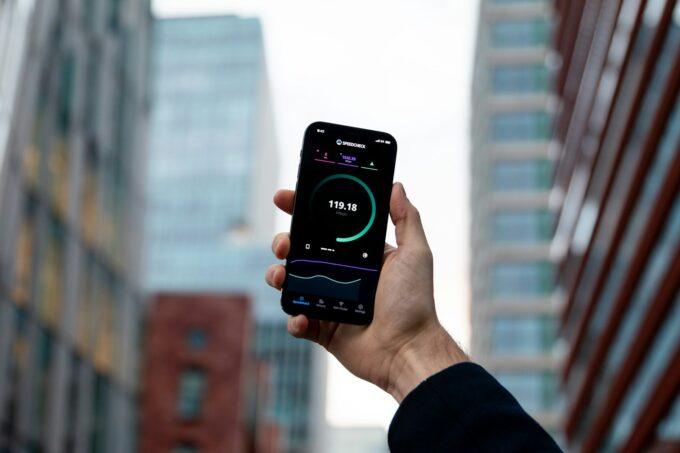
Speedtest.net by Ookla
– Most reliable standard test
– Shows upload/download/ping
– Multiple server options for accuracy
– Run 3-5 tests at different times
Fast.com (Netflix)
– Simpler interface
– Good for quick checks
– Click “Show More Info” for upload speed
Twitch Inspector
– Twitch’s official bandwidth testing tool
– Tests actual connection to Twitch servers
– Most relevant for streamers
– Visit: inspector.twitch.tv
Testing Methodology
Don’t trust a single speed test. Follow this process:
– Morning (8-10 AM)
– Afternoon (2-4 PM)
– Evening peak (7-10 PM)
– Night (11 PM-midnight)
– WiFi adds latency and variability
– Ethernet cable gives true line speed
– Never stream over WiFi if avoidable
– Stop downloads/uploads
– Disconnect other devices
– Pause cloud backups
– Check for Windows updates
– Your minimum speed determines what you can stream
– Peak speeds don’t matter if they drop at 8 PM
Red flags:
– Upload speed varies >30% between tests
– Evening speeds significantly lower than morning
– Packet loss >0.5%
– Jitter >10ms
These indicate network congestion or line issues that will ruin streams.
Real-World Streaming Requirements
Theory meets practice—what streamers actually need:
Single-PC Streaming Setup
Streaming from the same PC you’re gaming on:
For 720p60 streaming:
– Upload needed: 8-10 Mbps
– CPU: Encoding uses significant processor
– Games: Must leave bandwidth for game traffic
– Recommendation: 15 Mbps upload minimum
For 1080p60 streaming:
– Upload needed: 12-15 Mbps
– CPU: Heavy encoding load
– Games: Online games add 1-2 Mbps upload
– Recommendation: 20 Mbps upload minimum
Dual-PC Streaming Setup
Dedicated streaming PC separate from gaming PC:
For 1080p60 streaming:
– Upload needed: 10-12 Mbps
– Benefit: Less CPU impact on gaming PC
– Network: Capture card transfers between PCs (doesn’t use internet)
– Recommendation: 15 Mbps upload adequate
Specific Upload Recommendations by Stream Type
Just Chatting / IRL Streams
– Quality needed: 720p30 typically sufficient
– Upload required: 5-8 Mbps
– Reasoning: Less motion than gaming, lower bitrate acceptable
Competitive FPS Gaming
– Quality needed: 720p60 minimum (1080p60 preferred)
– Upload required: 10-15 Mbps
– Reasoning: Fast motion requires higher bitrate for clarity
Slow-Paced Games
– Quality needed: 1080p30 works well
– Upload required: 8-10 Mbps
– Reasoning: Low motion allows efficient compression
Art/Music Production
– Quality needed: 1080p30 sufficient
– Upload required: 8-10 Mbps
– Reasoning: Static content compresses efficiently
UK Providers Best for Streaming
Based on upload speeds offered:
Best: Full Fibre Providers
Pros: Symmetric speeds, consistent performance
Top choices:
– Community Fibre (London): Up to 3 Gbps symmetric
– Hyperoptic: Up to 1 Gbps symmetric
– CityFibre network (via TalkTalk, Vodafone, etc.): Up to 900 Mbps symmetric
Good: Premium Packages
Pros: High upload even if asymmetric
Top choices:
– Virgin Media Gig1: 52 Mbps upload
– BT Full Fibre 900: 110 Mbps upload
– Sky Full Fibre 900: 110 Mbps upload
Adequate: Mid-Tier FTTP
Pros: Decent upload for 1080p60
Examples:
– Most FTTP 150 packages: 30+ Mbps upload
– FTTC 67 packages: 20 Mbps upload
Avoid: Budget/Legacy Connections
Problems: Insufficient upload for quality streaming
Examples:
– ADSL: <1 Mbps upload
– Basic FTTC: 10 Mbps upload
– Entry Virgin Media: 10 Mbps upload
When Your Upload Speed Isn’t Enough
Options if current broadband can’t support streaming:
1. Reduce Stream Quality
– Drop from 1080p to 720p
– Lower framerate from 60fps to 30fps
– Reduce bitrate slightly
– Viewers won’t judge quality harshly if stream is stable
2. Optimise Encoding Settings
– Use hardware encoding (NVENC/AMD VCE) instead of x264
– Adjust encoder preset for efficiency
– Lower complexity scenes in overlays/animations
3. Upgrade Broadband Package
– Check if full fibre available at your address
– Compare upload speeds, not just download
– Calculate cost vs streaming income/hobby value
4. Use 5G Upload Bonding
– Some services bond multiple connections
– Expensive but viable for professional streamers
– Examples: Speedify, Connectify
5. Stream to YouTube Instead
– Allows lower bitrates for similar quality
– Different platform requirements
– Consider multi-streaming later
Latency and Jitter: The Hidden Factors
Upload speed alone doesn’t guarantee smooth streams:
Ping/Latency
– Target: <50ms to Twitch servers
– Acceptable: 50-100ms
– Problematic: >100ms
Test with: ping live.twitch.tv in command prompt
Jitter
– Target: <5ms variation
– Acceptable: 5-15ms
– Problematic: >20ms
Jitter causes inconsistent stream quality even with adequate speed.
Causes of high jitter:
– Network congestion
– Poor quality router
– WiFi interference
– ISP throttling
OBS Settings for Your Upload Speed
Configure OBS Studio based on available upload:
For 8-10 Mbps Upload
“
- Resolution: 720p (1280x720)

- Framerate: 60fps

- Bitrate: 4500 Kbps

- Encoder: NVENC/AMD (if available) or x264

- Preset: Quality/Balanced
For 12-15 Mbps Upload
`
- Resolution: 1080p (1920x1080)

- Framerate: 60fps

- Bitrate: 6000 Kbps

- Encoder: NVENC/AMD or x264

- Preset: Quality
For 20+ Mbps Upload
`
- Resolution: 1080p

- Framerate: 60fps

- Bitrate: 8000 Kbps (for extra clarity)

- Encoder: x264 medium/slow preset

- Room for dual streaming (Twitch + YouTube)
Troubleshooting Stream Quality Issues
Dropped Frames
Symptom: OBS shows red “dropped frames” indicator
Cause: Insufficient upload or network instability
Fix:
– Reduce bitrate by 500-1000 Kbps
– Check for background uploads
– Test at different times of day
– Consider line quality issue with ISP
Encoding Overload
Symptom: Stream lags but network is fine
Cause: CPU/GPU can’t encode at current settings
Fix:
– Use hardware encoding (NVENC)
– Lower encoder preset
– Reduce resolution/framerate
Buffering for Viewers
Symptom: Viewers report buffering despite your stable connection
Cause: Twitch transcoding not available OR bitrate too high for mobile viewers
Fix:
– Reduce bitrate (helps mobile viewers)
– Stream during partner-prioritized hours
– Build viewership for transcoding priority
Future-Proofing: Upload Speed Trends
Current UK Average Upload Speeds (2026)
– National average: 42 Mbps upload
– FTTP homes: 75 Mbps upload average
– Still on FTTC: 18 Mbps upload average
Where Things Are Heading
– Full fibre rollout continues: 85%+ homes by end 2026
– Symmetric speeds becoming standard
– 5G/6G home broadband improving upload
– Project Gigabit pushing rural speeds higher
Impact for streamers:
– 1080p60 becoming baseline
– 4K streaming may become viable (if Twitch increases cap)
– Multi-platform streaming easier with headroom
The Streamer’s Broadband Checklist
Before committing to streaming:
✅ Upload speed 1.5-2x your desired bitrate
✅ Wired ethernet connection to streaming PC
✅ Upload speed tested during evening peak hours
✅ Ping to Twitch servers <50ms
✅ Jitter consistently <10ms
✅ No packet loss during speed tests
✅ Quality router (not basic ISP-provided)
✅ QoS settings configured for streaming priority
Professional Streamer Requirements
Full-time streamers need redundancy:
Primary connection:
– 30+ Mbps upload minimum
– Full fibre preferred
– Business broadband for SLA
Backup connection:
– 5G home broadband on different network
– Automatic failover capability
– Bonding software for seamless switching
Investment justification:
– Downtime = lost income
– Professional image requires reliability
– Backup costs less than lost viewers
Upload speed is the single most important broadband specification for Twitch streaming—even more than download speed that dominates marketing.
For hobby streaming, 10-15 Mbps upload handles 1080p30 or 720p60 comfortably. Serious streamers should target 20+ Mbps for 1080p60 with headroom. Professional streamers need 30+ Mbps plus redundancy.
Check your upload speed RIGHT NOW. Not what your package advertises—what you actually get during evening peak hours. That number determines your realistic streaming quality.
And if your current broadband can’t deliver? Either adjust stream quality to match your connection, or upgrade to full fibre. Fighting insufficient upload speed leads to frustrated streamers and lost viewers.
Your upload speed dictates your streaming ceiling. Choose accordingly.