How to troubleshoot broadband connection issues
 Julian Glover
When your broadband connection drops or slows to a crawl, it's frustrating, but before you spend hours on hold with your provider, there are several troubleshooting steps you can take yourself. Most connection issues have straightforward solutions that you can implement in minutes, and understanding how to diagnose problems systematically will save you time and potentially money.
Check the obvious culprits first
Before diving into complex diagnostics, eliminate the simplest explanations. Has someone accidentally unplugged your router? Check all cables are firmly connected at both ends, the power cable, the DSL or fibre cable into your router, and any Ethernet cables to devices. Loose connections cause more problems than you'd expect.
Look at your router's lights. Most UK routers follow similar patterns: a solid power light means it's on, a solid or flashing broadband/DSL light indicates connection status, and internet lights show whether you're online. Consult your router's manual or the label on the device itself to understand what different light patterns mean. A red or amber broadband light typically signals a problem with your line.
Check whether the problem affects all devices or just one. If only your laptop has issues but your phone connects fine, the problem lies with that specific device rather than your broadband connection.
Restart your router properly
The classic "turn it off and on again" genuinely works for broadband issues, but there's a right way to do it. Simply pressing the power button isn't always sufficient.
Switch off your router using the power button, then unplug it from the mains. Wait a full 30 seconds, this allows capacitors to discharge and gives your provider's exchange equipment time to reset your line. Plug it back in and switch it on. Wait 5-10 minutes for the router to fully reconnect and establish a stable connection.
Whilst waiting, restart the device you're using to access the internet as well. This clears any cached network settings that might be causing conflicts.
Test your connection speed and stability
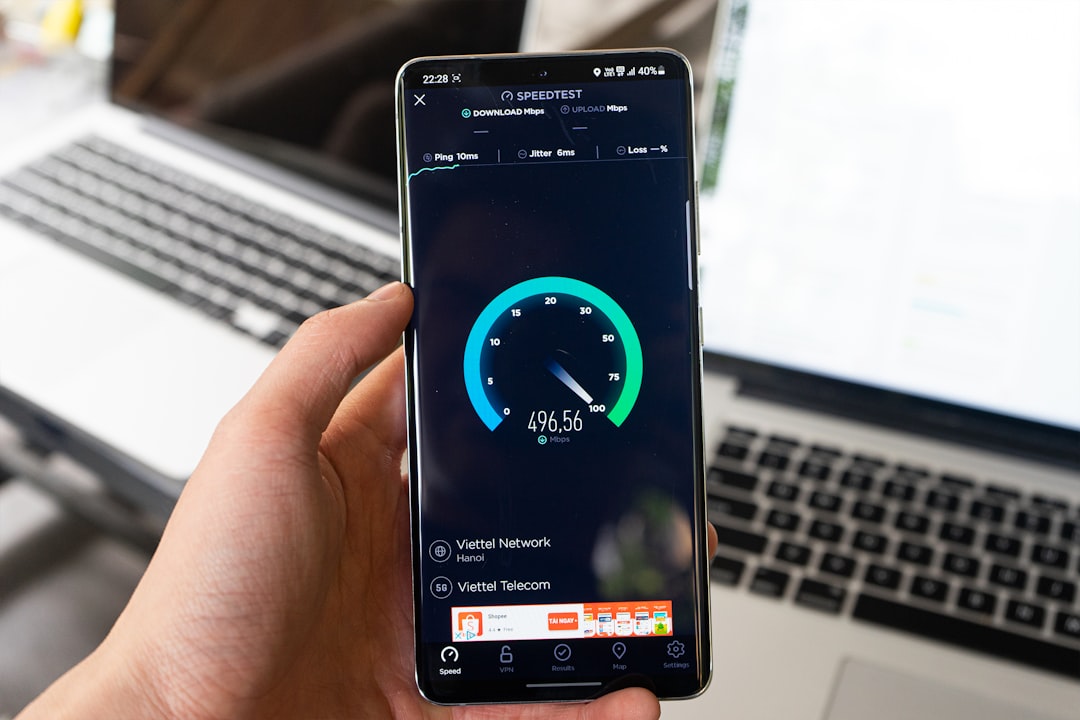
Once your router has restarted, run a speed test to establish your current performance. Use reliable services like Ofcom's official speed test or Speedtest.net. For accurate results:
- Connect your device directly to the router via Ethernet cable if possible
- Close all other applications and browser tabs
- Run the test three times at different times of day
- Note down the download speed, upload speed, and ping
Compare these results against the speeds promised in your contract. Under Ofcom rules, if your speed falls below the minimum guaranteed speed, your provider must fix it or let you exit your contract penalty-free.
If speeds are acceptable but your connection keeps dropping, monitor the ping and jitter figures. High ping (over 100ms) or variable jitter suggests an unstable connection that needs investigation.
Eliminate WiFi problems
Many "broadband issues" are actually WiFi problems. Test whether your broadband line itself is working by connecting a laptop or computer directly to your router with an Ethernet cable. If this gives you a stable, fast connection but WiFi doesn't, you've isolated the problem.
Common WiFi issues include:
- Interference: Cordless phones, baby monitors, and neighbouring WiFi networks all compete for space. Try changing your WiFi channel in your router settings, channels 1, 6, and 11 on 2.4GHz typically work best as they don't overlap.
- Distance and obstacles: Thick walls, floors, and metal objects block WiFi signals. Move closer to your router or consider a WiFi extender.
- Overloaded networks: Too many devices connected simultaneously can overwhelm older routers. Disconnect devices you're not using.
- Outdated router: Routers over 5 years old may struggle with modern demands. Contact your provider about a replacement.
Check for service outages and maintenance
Your problem might not be in your home at all. Visit your provider's website or check their social media channels for service status updates. Most major providers have online tools where you can enter your postcode to check for known issues in your area.
Websites like Downdetector aggregate user reports and can show you whether others are experiencing similar problems. A spike in reports suggests a widespread outage rather than an issue specific to your line.
If you're with Openreach-based providers (BT, Sky, TalkTalk, Plusnet, EE, and others), check whether engineers are working in your street. Planned maintenance sometimes disrupts service temporarily.
Inspect your master socket and filters
For ADSL and FSDL connections, your master socket, the main phone socket where the line enters your property, is critical. Remove the faceplate if possible (most modern NTE5 master sockets have a removable lower section) and plug your router directly into the test socket behind it. This bypasses your internal wiring and any faults it might have.
Check that microfilters are correctly installed on every phone socket in use. These small devices separate your voice and data signals, and missing or faulty filters cause connection problems. You need a filter on every socket with a device plugged in, even if that device is just a phone.
Look for physical damage: corrosion, loose wires, or burn marks in the master socket indicate problems that require engineer attention.
Run diagnostic tests
Most routers have built-in diagnostic tools accessible through their web interface. Type your router's IP address into a web browser (commonly 192.168.1.1 or 192.168.0.1) and log in with the credentials on the router label.
Look for sections labelled "Diagnostics," "Status," or "System Log." These reveal useful information:
- Sync speed: The maximum speed your line can support
- SNR margin (Signal-to-Noise Ratio): Should be above 6dB; lower suggests line noise
- Line attenuation: Shows signal loss; higher numbers mean weaker signals
- Error counts: High CRC errors or FEC corrections indicate line problems
If you see concerning figures, note them down to report to your provider, it helps them diagnose issues without sending an engineer unnecessarily.
Check for internal wiring issues
Poor internal wiring causes more broadband problems than most people realise. If you have multiple phone extensions in your property, try this test: disconnect all phones and devices except your router, which should be plugged into the master socket. If your connection improves dramatically, your extension wiring is problematic.
Extension cables running alongside mains power cables or near fluorescent lights pick up interference. Keep phone cables as short as possible and route them away from electrical wiring.
Very old properties might still have the original internal wiring from decades ago, which degrades over time. Whilst your provider is responsible for the line up to the master socket, internal wiring beyond that point is your responsibility. An electrician or telephone engineer can rewire extensions or install additional master sockets.
Know when to contact your provider
If you've worked through these steps and still have problems, it's time to contact your provider. When you do, you'll speed up the process by having information ready:
- Specific error messages or router light patterns
- Speed test results from multiple times
- The troubleshooting steps you've already taken
- Whether the problem affects all devices or just some
- Diagnostic information from your router
Be clear about symptoms: "My connection drops every evening around 7pm" is more helpful than "My internet doesn't work properly." Ask the provider to run line tests from their end, they can check signal quality and error rates remotely.
If your provider determines the fault is with the line itself, they must send an engineer. Under Ofcom rules, if you've reported a fault, you're entitled to compensation if it takes too long to fix: £9.09 per day after two working days for most providers.
Consider hardware replacement
If all tests point to your equipment being faulty, request a replacement router from your provider, they typically provide these free for contracted customers. Routers do fail, especially after power surges or simply from years of constant use.
For the master socket itself, only Openreach engineers (or your provider's engineers for non-Openreach networks like Virgin Media) can legally work on it. Never attempt repairs yourself, as you could invalidate your service or even face legal issues for tampering with telecommunications infrastructure.
Key takeaways
- Start with simple fixes: check cables, restart your router properly (power off for 30 seconds), and verify whether the issue affects all devices or just one.
- Isolate whether the problem is WiFi or broadband by testing with an Ethernet cable, many connection problems are actually WiFi issues that won't require engineer visits.
- Use your router's diagnostic interface to check sync speed, SNR margin, and error counts before contacting your provider, as this information helps them diagnose issues remotely.
- Keep records of speed tests, dropout times, and troubleshooting steps taken, this documentation is valuable when escalating issues or claiming compensation.
- Know your rights: providers must fix faults within reasonable timeframes, and you're entitled to compensation for delays under Ofcom's automatic compensation scheme.
Julian Glover
Julian Glover covers UK home and business broadband, comparing providers, explaining new tech, and helping readers find the right deal for their household.