How to log into your router to check your connection stats (UK guide)
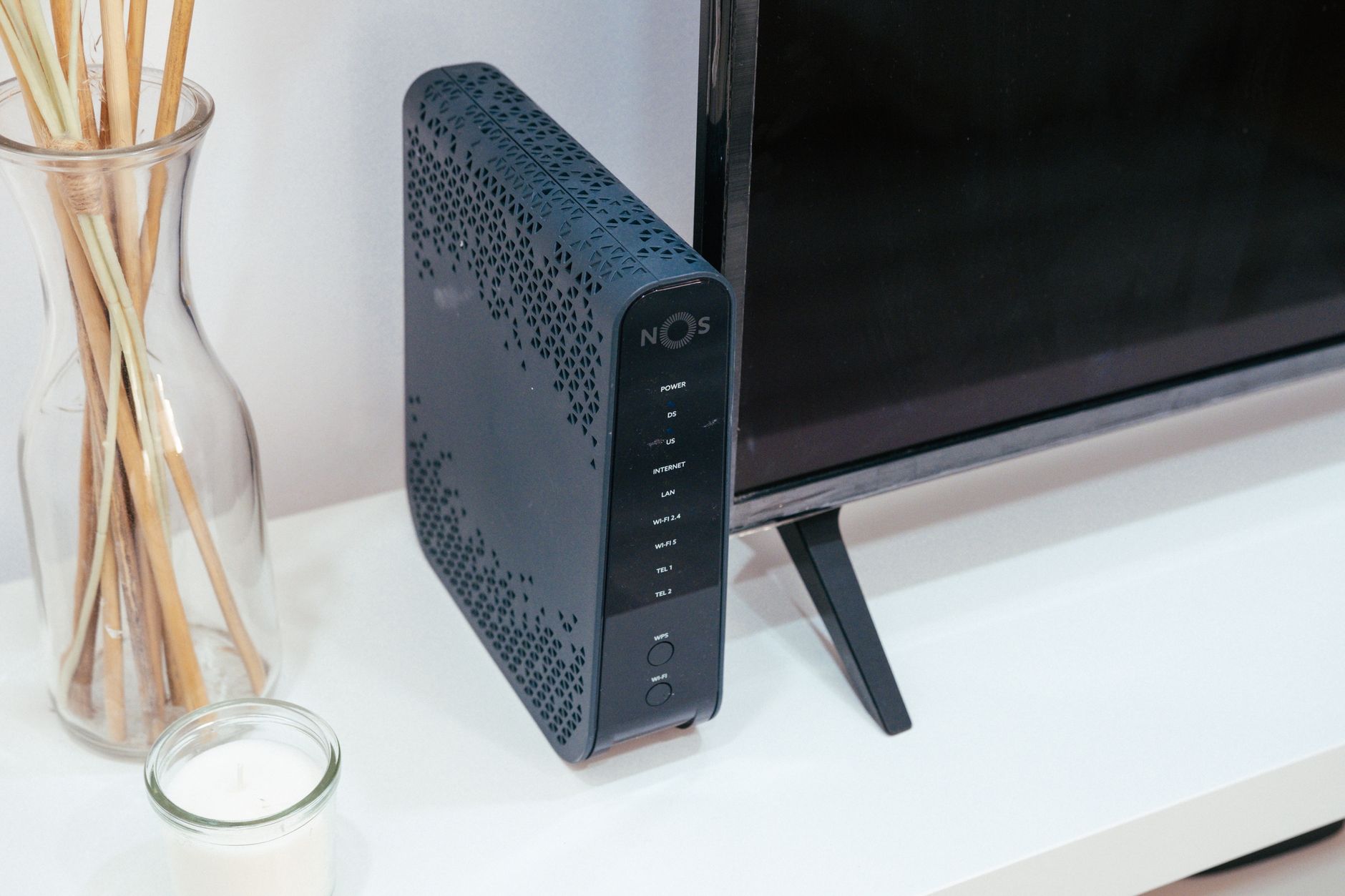
Logging into your router is quicker than most people expect. You connect to your own network, type a short address into your browser, and enter the admin password printed on the hub. From there you can see your connection status, change Wi-Fi settings and, on most hubs, view the line statistics that tell you whether your broadband is behaving as it should.
Here is the direct version for the big UK providers. Open a browser on a device joined to your own Wi-Fi or plugged into the router with a cable, then type the address below.
- BT, EE and Plusnet:
192.168.1.254 - Sky, NOW and Virgin Media:
192.168.0.1 - TalkTalk and Vodafone:
192.168.1.1
The admin password is printed on the hub itself, usually on a card or sticker on the back or base. The rest of this guide explains each step, the stats worth checking once you are in, and what to do if the numbers look wrong.
What you can check by logging in
The router admin page is the control room for your home network. Depending on the model, you can:
- Change your Wi-Fi network name and password
- See which devices are connected
- Set up port forwarding for games or remote access
- Manage parental controls
- Check your connection status and line statistics
Looking at these pages changes nothing. You only alter your setup if you actively save a change, so there is no harm in having a browse.
One important point before you start. The device you use has to be joined to your own network, over Wi-Fi or by cable. The settings page lives inside your home network, so a phone on 4G or 5G cannot reach it. On a phone, check the Wi-Fi symbol is showing at the top rather than the mobile signal.
Step 1: find your router's IP (gateway) address
Your router has a private address on your local network, often something like 192.168.1.1. This is the number you type into your browser. If your provider is not in the quick list above, you can find it on whatever device you are using.
On Windows: press the Windows key and R together, type cmd and press Enter. In the Command Prompt window type ipconfig and press Enter, then look for the Default Gateway entry under your active connection.
On a Mac: open the Apple menu, go to System Preferences, then Network. Select your active connection and click Advanced. In the TCP/IP tab, the address next to Router is the one you want. You can also open Terminal and type route -n get default.
On Android: go to Settings, then Wi-Fi, tap your connected network and look for Gateway or Router.
On iPhone or iPad: go to Settings, then Wi-Fi, tap the i icon next to your network and read the Router field.
If none of that works, check the sticker on the router. Many print the default address, username and password on the bottom or back of the device.
Step 2: open the router login page in your browser
Open any browser and type the address into the bar at the very top, where a web address goes. This catches a lot of people out: if you type the numbers into a search box instead, you land on a search page rather than your router. Press Enter and the login page should appear.
Step 3: enter your username and password
You will be asked for an admin password, and sometimes a username as well. It is printed on the hub, often on a pull-out card, and usually labelled admin or settings.
The mistake almost everyone makes is using the Wi-Fi password. On most hubs the admin password is a different thing entirely. Your Wi-Fi password lets devices connect to the internet. The admin password lets you into the router's settings. If a hub has not been changed from its defaults, some older models fall back to the username admin and the password admin.
Router login details by UK broadband provider
Addresses and password locations vary by provider and hub. Here is where each major UK provider puts things.
BT
Type 192.168.1.254 or http://bthomehub.home into the address bar to open the BT Hub Manager. The admin password is on the pull-out settings card or sticker on the back of the hub, unless you have changed it. The My BT app can change your Wi-Fi password, and the admin password on a Smart Hub 3. BT's Hub Manager can also run a connection test and, if needed, restart your router or book an engineer.
EE
Any EE Smart Hub lives at 192.168.1.254. The password is on the back of the hub, alongside the Wi-Fi details. The EE app handles Wi-Fi settings, guest Wi-Fi and parental controls.
Plusnet
The Plusnet Hub Two uses 192.168.1.254. The password is on the back of the hub or on the password sticker Plusnet sent you. Your broadband account login is separate and lives in My Account.
Sky and NOW
The Sky Broadband Hub is at 192.168.0.1. The username is admin, and until you change it the password is the Wi-Fi password on the back of the hub or its connect card. Sky's newer Max and Gigafast+ hubs work differently, so follow Sky's own guide for those.
NOW Broadband hubs also use 192.168.0.1, with username admin and password nowtv in lower case until changed. NOW has said its hubs no longer receive security updates, so changing the admin password is worth doing straight away. The My Sky app shows connected devices, pauses Wi-Fi and sets schedules.
Virgin Media
The Hub 3, Hub 4, Hub 5 and Hub 5x all use 192.168.0.1, with the settings password on the bottom of the hub. There is a catch worth knowing: if you switch a Virgin hub into modem mode to use your own router, the address changes to 192.168.100.1. Modem mode is available on the Hub 3, 4 and 5, but not the Hub 5x.
Virgin's admin page is more restricted than a typical DSL hub, and much of the day to day control happens in the Virgin Media Connect app instead, which changes your Wi-Fi name and password, pauses devices and restarts the hub. It works with a Hub 3, 4 or 5.
TalkTalk
The TalkTalk Wi-Fi Hub uses 192.168.1.1 or 192.168.1.254. The admin password is usually on the sticker on the hub, and it is not your Wi-Fi password. If you run an Amazon eero from TalkTalk, there is no login page at all: everything happens in the eero app. Fibre connections need no username.
Vodafone
The Power Hub, Ultra Hub and Wi-Fi Hub use 192.168.1.1, with the password on the bottom of the hub. The first time you log in, it asks you to change it. The 5G Hub is different, using 192.168.0.1 and asking you to create your own account on first use. The My Vodafone app changes your Wi-Fi name and password under Wi-Fi controls.
Router login details by manufacturer
If you have bought your own router rather than using a provider hub, the brand sets the address. Common defaults include:
- TP-Link:
tplinkwifi.netor192.168.0.1 - ASUS:
192.168.1.1 - Netgear:
routerlogin.net
As ever, the sticker on the device is the definitive source for both the address and the login. Note that some providers restrict or do not support your own router on certain plans. Vodafone, for example, does not allow it on Pro, 5G or Digital Voice plans, and EE's TV and Digital Home Phone services need an EE or BT hub.
Provider apps versus the admin page
It is worth being clear about the difference. The router admin page, reached through your browser, is where the detailed technical settings and line stats live. The provider apps (My BT, EE, My Sky, Virgin Media Connect, My Vodafone) are friendlier but narrower. They are good for changing a Wi-Fi password, pausing a device or restarting the hub, but they rarely show the full line statistics. For sync speed, attenuation and error counts, the browser admin page is usually the only way in.
Where to find your connection stats
Once you are logged in, look for a section named something like Broadband, Status, Technical log, Advanced or Internet. The exact label depends on the hub. On DSL and fibre-to-the-cabinet lines you will usually find a page of numbers covering sync speed, line attenuation, noise margin and error counts. On full fibre, where the connection terminates at an ONT, some of these figures look different or are not shown at all.
Understanding the key numbers
- Sync speed (sometimes shown as line rate or connection speed) is the speed your router has negotiated with the network, separate from any speed test result. If your sync speed is well below the speed you pay for, that points to a line problem rather than Wi-Fi.
- Line attenuation measures how much signal is lost between the exchange or cabinet and your home. Higher attenuation generally means a longer or poorer line.
- Noise margin (also called SNR margin, for signal to noise ratio) is the buffer protecting your connection against interference. A low or fluctuating margin tends to go hand in hand with dropouts.
- Error counts record data that had to be corrected or re-sent. A steadily climbing error count, especially during dropouts, is a useful clue.
- Uptime shows how long the connection has held without dropping. Frequent resets here are a red flag.
The absolute figures matter less than the pattern. Note down what the numbers look like when things are fine, so you have something to compare against when they are not.
What to do if your stats look wrong or the connection is slow
Start with the simplest fix. Restarting the hub clears temporary problems, and Ofcom's own advice is to switch it off at the wall for about 30 seconds before turning it back on. Let the lights settle, which can take a couple of minutes, then test again.
From there, match the symptom to the stat:
- Dropouts and resets often show up as a low or jumping noise margin and a short uptime. Check for anything causing electrical interference nearby, and make sure your master socket and any filters are sound.
- Slow speeds across every device with a low sync speed point to the line itself rather than your Wi-Fi.
- Slow speeds on Wi-Fi only, while a wired device is fine, point to Wi-Fi coverage. Many provider hubs let you check and adjust wireless settings, and some apps can tell you which band a device is using.
- A climbing error count alongside dropouts gives your provider something concrete to investigate.
If the figures clearly point to a fault, report them to your provider. BT's Hub Manager, for instance, can run a connection test and either restart the router or book an engineer. If restarting and checking your stats does not help and the speed is simply lower than you need, the issue may be the package itself rather than a fault.
If you can't log in: resetting and recovering access
If the login page will not load, work through the basics first:
- Confirm you are connected to your own router, by Wi-Fi or cable, and not another network or mobile data.
- Check you have typed the address correctly, and into the address bar rather than a search box.
- Try a different browser.
- Restart the router.
- Try another connected device.
If the page loads but your password is rejected, make sure you are using the admin password from the hub and not the Wi-Fi password. If you changed the admin password and cannot remember it, a factory reset restores the original login details printed on the device.
A reset is done by holding the reset button, and the hold time varies by hub. Virgin Media and Vodafone hubs are generally around 10 seconds, the BT Smart Hub 3 around 10 seconds, the Smart Hub 2 around 5 seconds, the EE Smart Hub around 5 seconds (or 20 seconds on a pinhole), Plusnet around 20 seconds, and the TalkTalk Wi-Fi Hub around 30 seconds. Check your model's exact timing before you start.
Be aware of the cost of a reset. It wipes any custom settings, removes port forwarding rules and returns the hub to how it arrived. If you have made changes you want to keep, note them down first. Since 29 April 2024, UK law has banned shared default passwords on new kit, so a reset on newer hardware leaves you with the unique password printed on the device.
FAQ
Why can't I log in? Almost always one of three things: you are not connected to your own router, you typed the address into a search box, or you are using the Wi-Fi password instead of the admin password. Work through those first.
What is the default username and password for my router?
It is printed on the hub, usually on a sticker or pull-out card. Older kit sometimes uses admin and admin. New equipment sold since April 2024 cannot use a shared default, so the printed password is unique to your device.
I forgot my admin password. What now? If you changed it and cannot recall it, a factory reset restores the original credentials. Remember this also wipes your custom settings and port forwarding rules.
Is it safe to change router settings? Yes, as long as you only change settings you understand. Just looking changes nothing. Editing advanced network options you are unsure about can affect your broadband, so note the original values before you touch anything, and when in doubt a reset puts everything back.
Can I use my own router instead of the provider hub? Sometimes. It depends on the provider and plan. Virgin Media needs the hub in modem mode (not available on the Hub 5x), Vodafone does not allow it on Pro, 5G or Digital Voice plans, and some EE services require an EE or BT hub. Check with your provider before buying.
More on speed and wi-fi
- What broadband speed do you actually need? a UK household guide
- Does house wiring affect broadband speed? a UK guide to internal wiring and slow connections
- Broadband not reaching every room? Mesh, extender or access point
- What's the fastest broadband anywhere in the UK?
- Broadband Upload Speeds Explained
- Improve Outdoor Broadband Signal

Julian Glover
Julian Glover covers UK home and business broadband, comparing providers, explaining new tech, and helping readers find the right deal for their household. Julian is the editor and byline for our reviews, guides and news.