Routers: A Complete Guide to Types and Choosing the Right One for Your Home
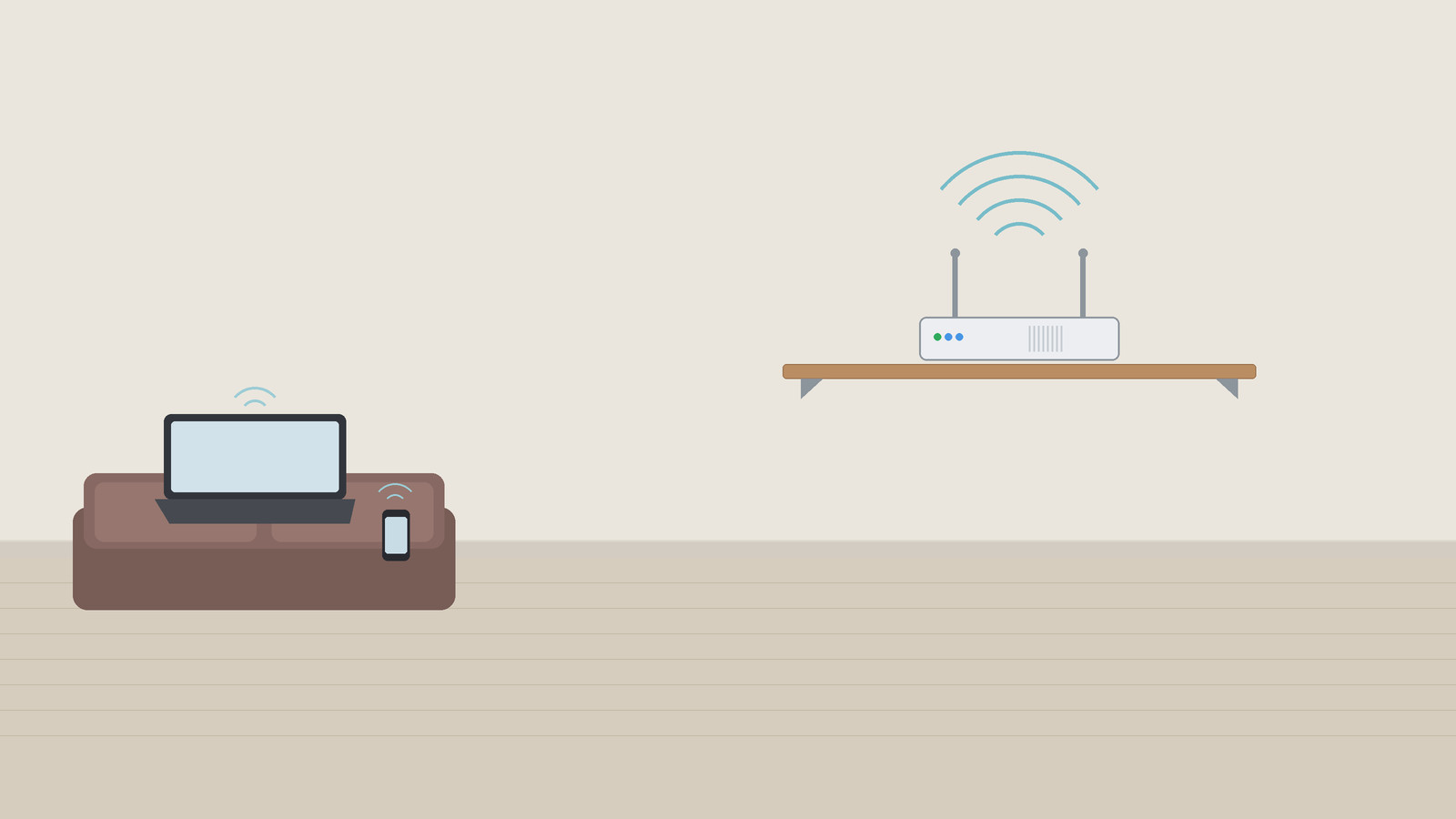
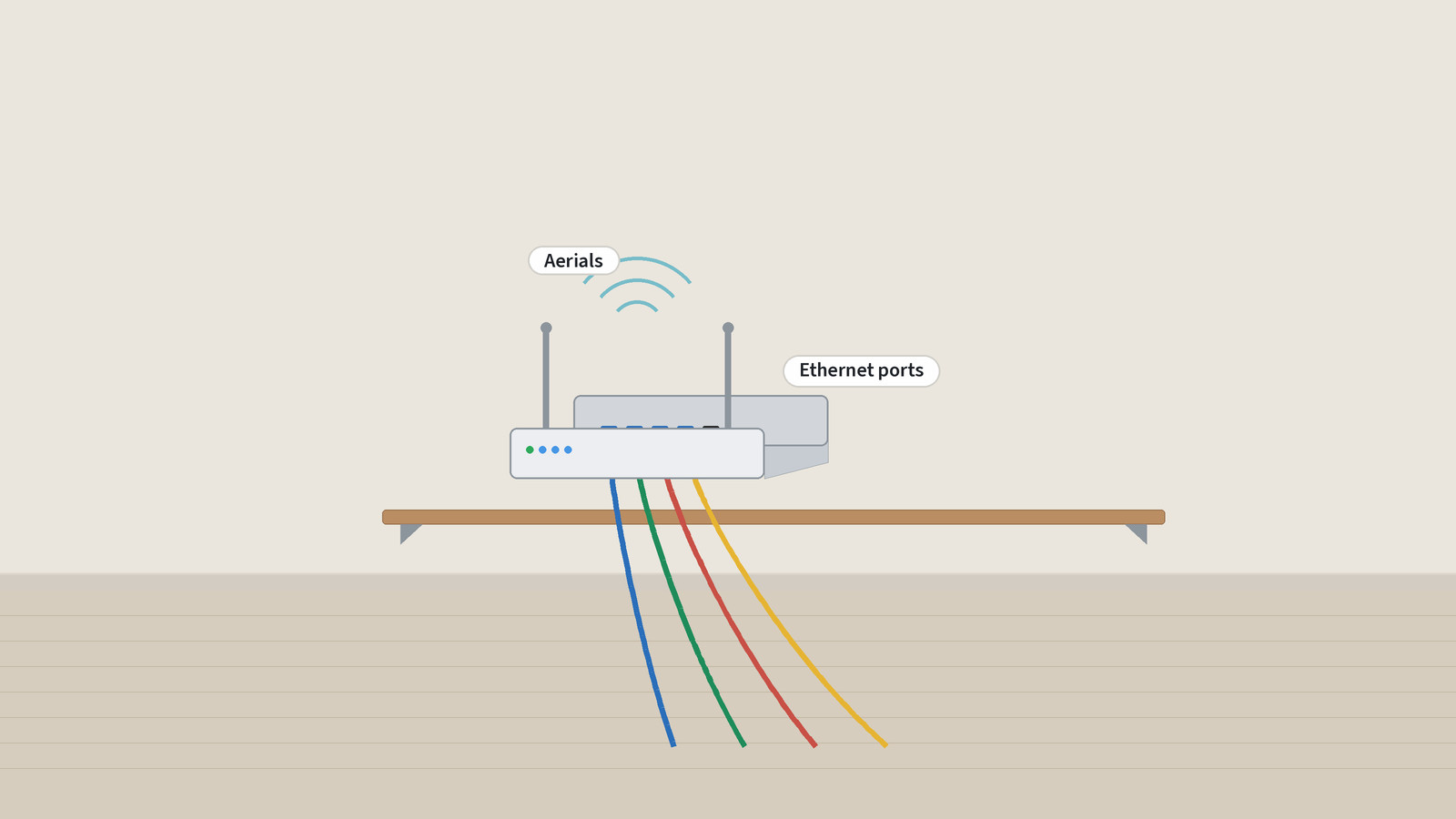
A router is the box that takes the broadband arriving at your home and turns it into a connection your phones, laptops, TVs and other devices can share, usually over Wi-Fi and often over Ethernet cables as well.
People often say "router" when they mean the single box their provider delivered, but that box may be doing more than one job.
What a router does and why the choice matters
In a typical home, the router connects your household network to the internet and shares that connection between your devices, usually over Wi-Fi, Ethernet, or both.
If the incoming broadband is slow, no router will make it faster than the line. Ofcom puts this plainly: your Wi-Fi will never outperform your broadband service. If a speed test is fine next to the router but poor in another room, you are more likely to have a Wi-Fi coverage problem. An older box, or one sat on the floor or tucked behind a TV, can make that worse.
Provider-supplied router
Most UK home packages still arrive with a router from the provider, already set up for their network and covered by their support.
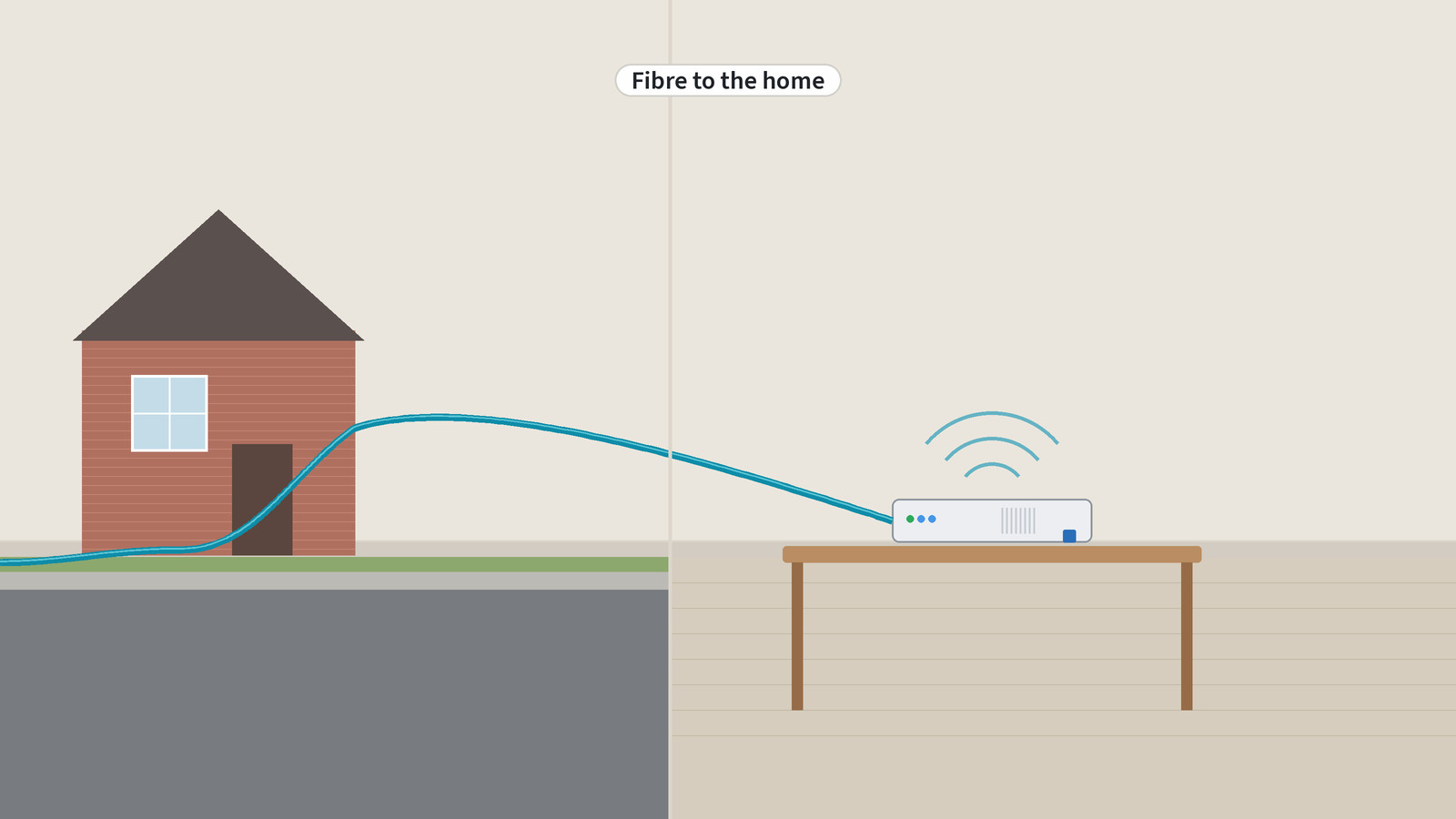
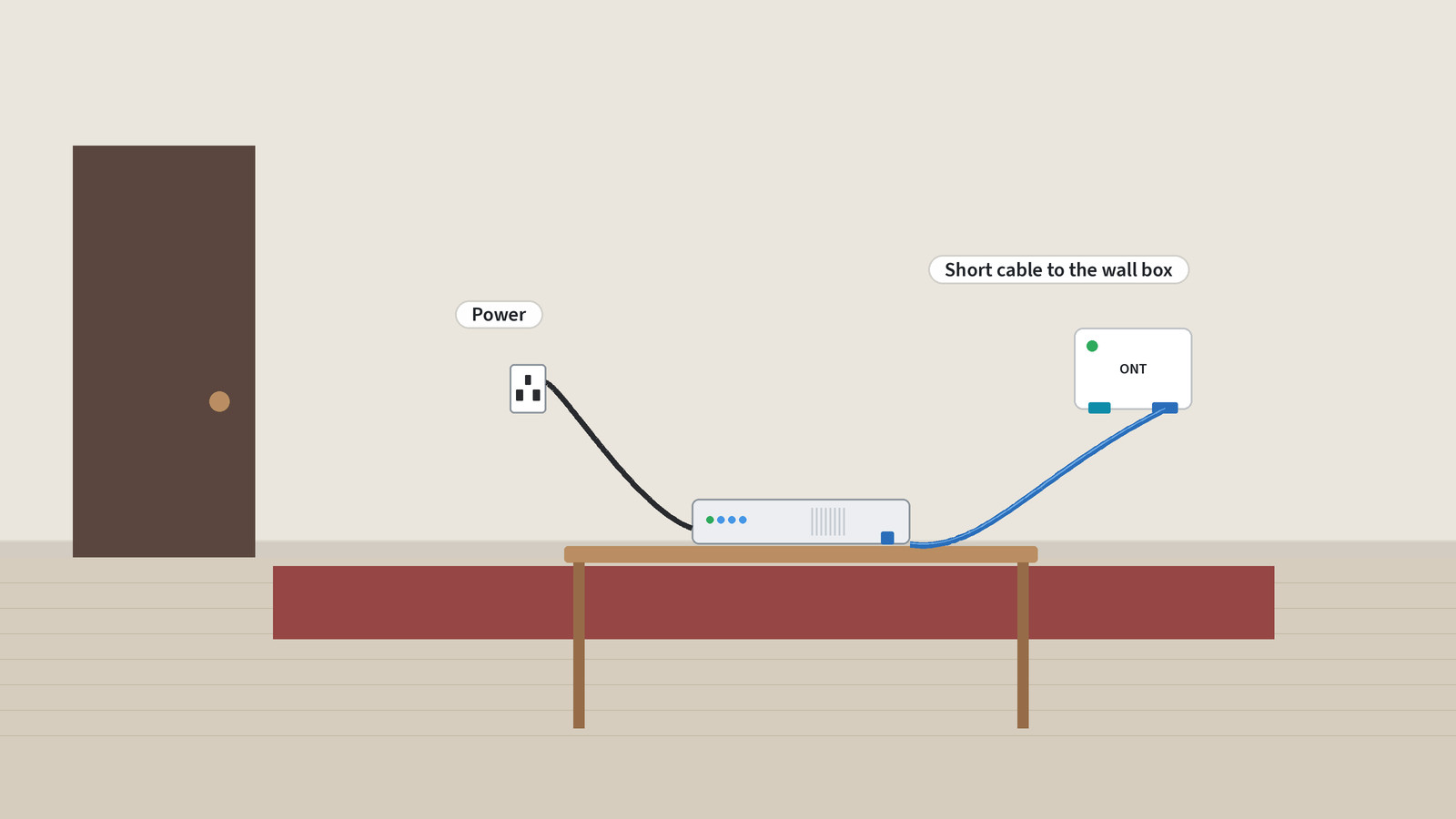
On a part-fibre or copper line, this box often plugs straight into the telephone master socket and includes the function of a modem as well as a router. On a full fibre line, the fibre usually ends at a separate wall box, the ONT or fibre connection box, and the provider's router plugs into that with an Ethernet cable. On cable broadband, the supplied hub is built for the cable network.
The advantage is simplicity: your provider can often run checks, send a replacement, and talk you through set-up. The limitation is that the supplied box is a general-purpose device, and an older one may struggle in a large or awkwardly shaped home.
If you are unsure which connection you have, look at what the router plugs into. We explain the Openreach wall box in Openreach ONT box explained. Keep the supplied router and any mesh or booster units switched on so they can receive automatic updates, as Ofcom recommends.
 ## Standalone Wi-Fi router
A standalone Wi-Fi router is a box you buy yourself, rather than the one that came with the package. Ofcom notes that this can provide better Wi-Fi, but that it can be trickier to set up, and that your provider may not be able to help if a problem occurs.
On a full fibre service, this is often a fairly direct swap: the new router plugs into the ONT in place of the provider's box. On copper, part-fibre or cable services, you may need the provider's box to stay in place in modem or bridge mode, or a separate modem, so the line still authenticates correctly. That set-up is specific to the provider and the connection type, so check with them before you buy.
A newer standalone router can be worth considering if the supplied box is old, if you have frequent disconnections, or if you need better coverage and your provider cannot offer an upgrade. Ofcom also points out that older phones, tablets and laptops will not gain the full benefit of a newer Wi-Fi standard if the device itself only supports an older one.
 ## Modem and router compared
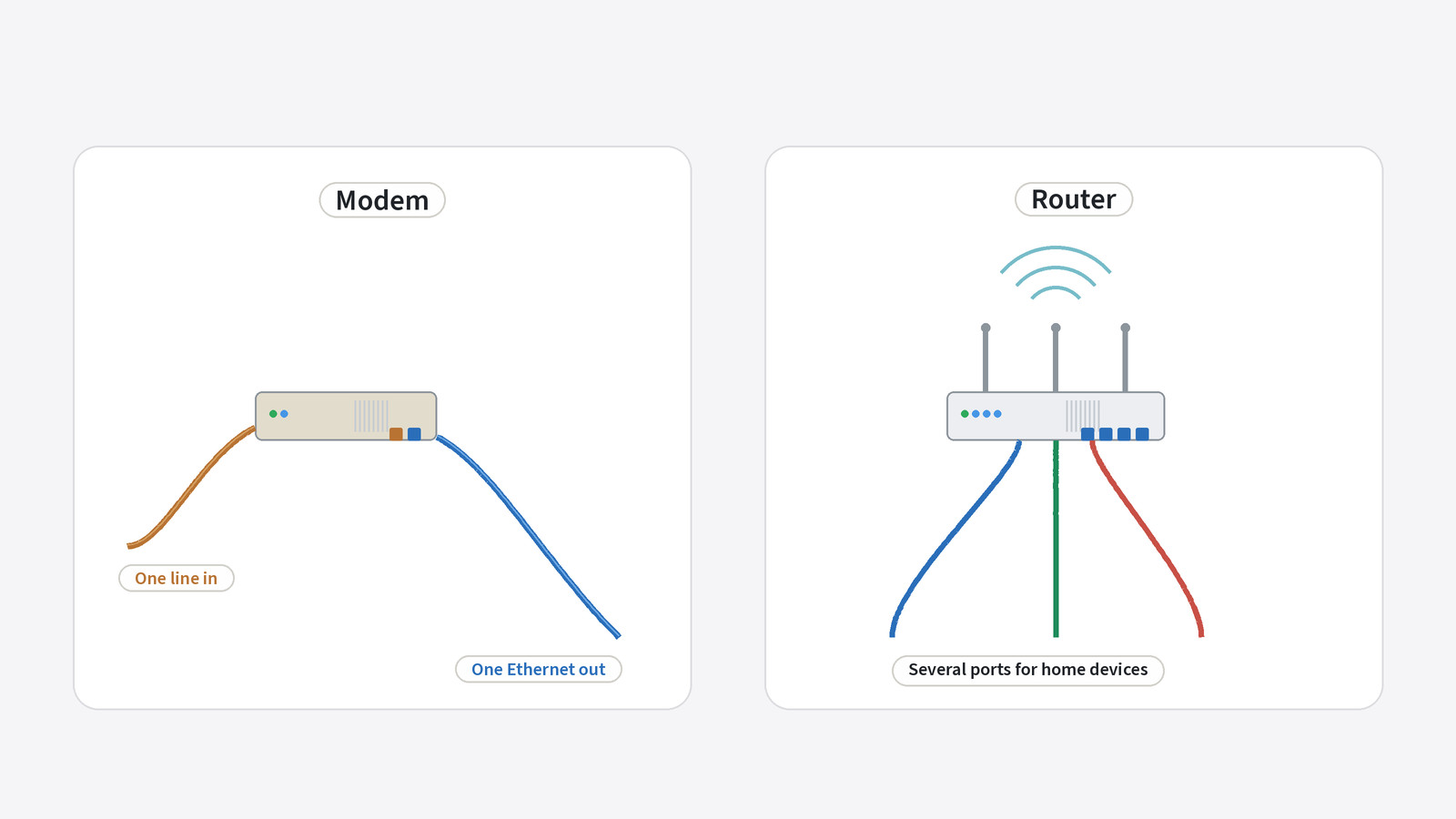
A modem and a router are different devices, even though they are often combined in one box.
The modem's job is to convert the signal arriving from your broadband network into a form a home network can use. On an older copper or part-fibre line, that usually means the telephone-line signal. On cable, it means the coaxial signal. On full fibre, the ONT does the equivalent conversion from the optical fibre, which is why people sometimes call it a fibre modem even though it is a separate wall box.
The router's job is to share that connection with your devices, typically by creating the Wi-Fi network. In many UK homes the provider's "router" is a gateway: modem and router in a single unit. That is why the same box can plug into a phone socket and still offer Wi-Fi, and why swapping in a standalone router is not always a simple unplug-and-replace. If you remove a combined gateway, you may still need a modem, or the provider's box in modem mode, unless the ONT is already doing that job on a full fibre line. A faster Wi-Fi router will not replace a missing modem, and an ONT will not create Wi-Fi on its own.
 ## Mesh system
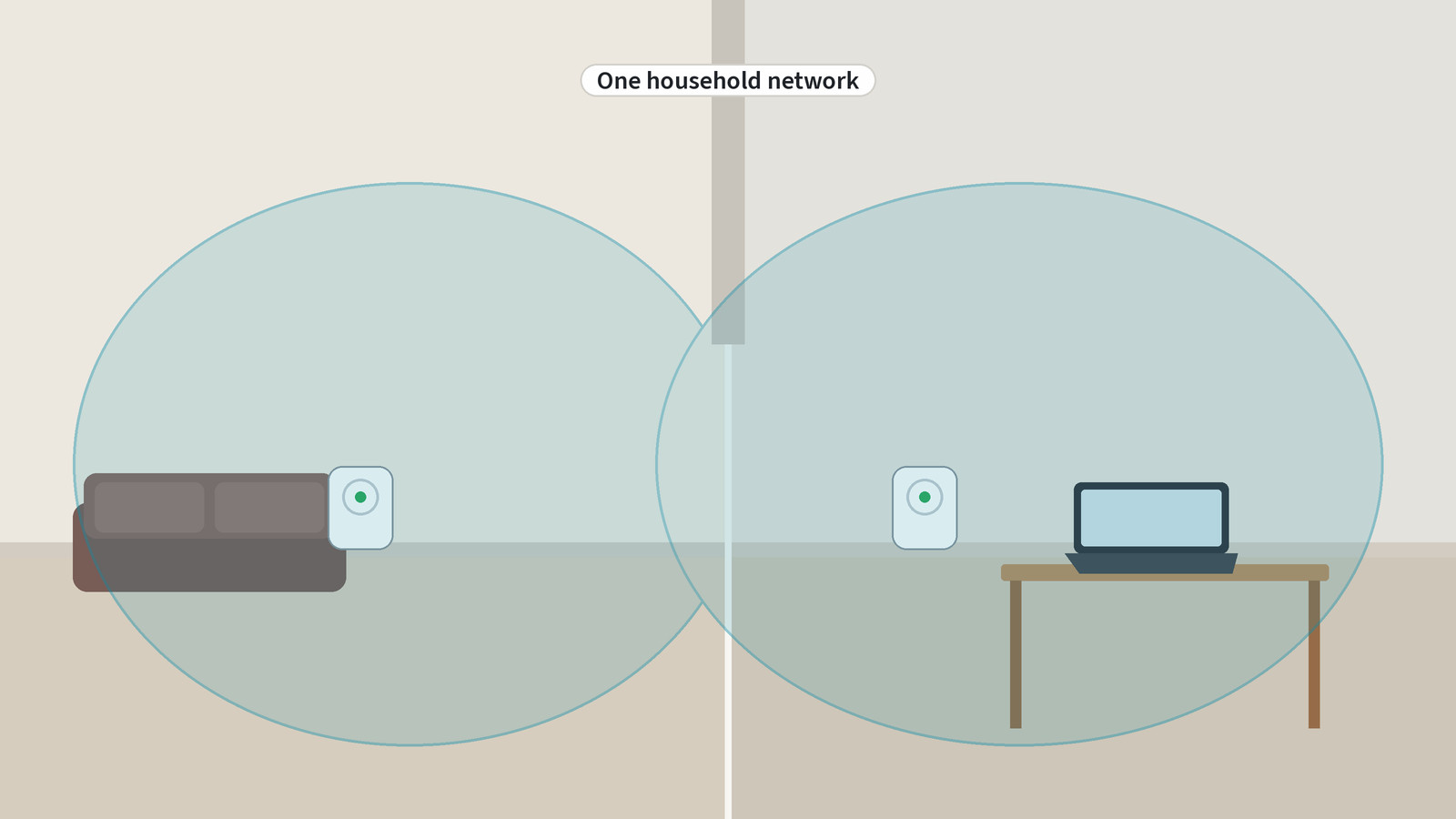
A mesh system uses two or more matched units around the home to create one Wi-Fi network. Your devices should stay on the same network name as you move from room to room, rather than clinging to a weak signal from a single box.
Ofcom describes mesh networks as a system of boxes placed around the home to improve coverage without reducing the performance of the broadband connection itself. It also notes that starter packs range from £60 to over £200, that larger homes may need more units, and that adding too many can make things worse.
Mesh is most useful in a larger or thick-walled house. It is usually more than you need in a small flat if a well-placed router already covers every room.
Your provider may offer extra mesh units as part of a package, or you can buy a system separately. For a longer comparison with extenders, access points and powerline adapters, see our guide to mesh versus extenders and access points. Ofcom notes that cheaper extenders and boosters can affect data speeds and how responsive the connection feels, unlike a well-designed mesh.
 ## 4G and 5G router
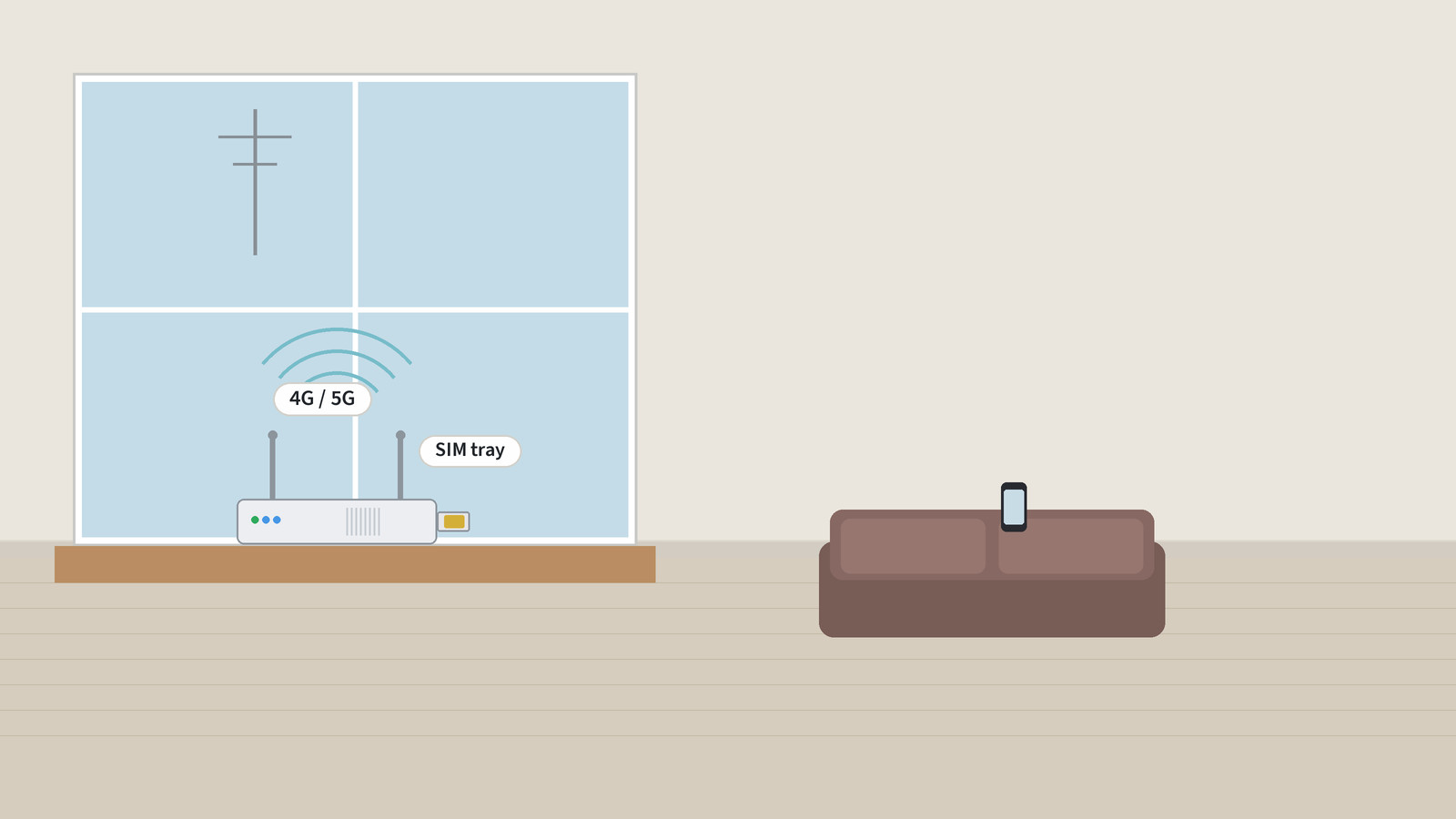
A 4G or 5G router does not use a copper, fibre or cable line into the home in the usual way. It connects over the mobile network, using a SIM, and then shares that connection over Wi-Fi.
Ofcom lists 5G mobile broadband, along with satellite and fixed wireless access, as options that can be useful if your wired broadband choices are limited. Speeds and reliability can change depending on where you live, the signal in the property, and how busy the local mobile cell is.
These routers are sometimes sold as a home broadband replacement, and sometimes as a backup. They still need a decent mobile signal, and indoor coverage is not the same as the signal on the street. Use one when the line into the home is the problem, not when a fixed-line router is simply in the wrong place, and check coverage and the contract first.
 ## Where to put it
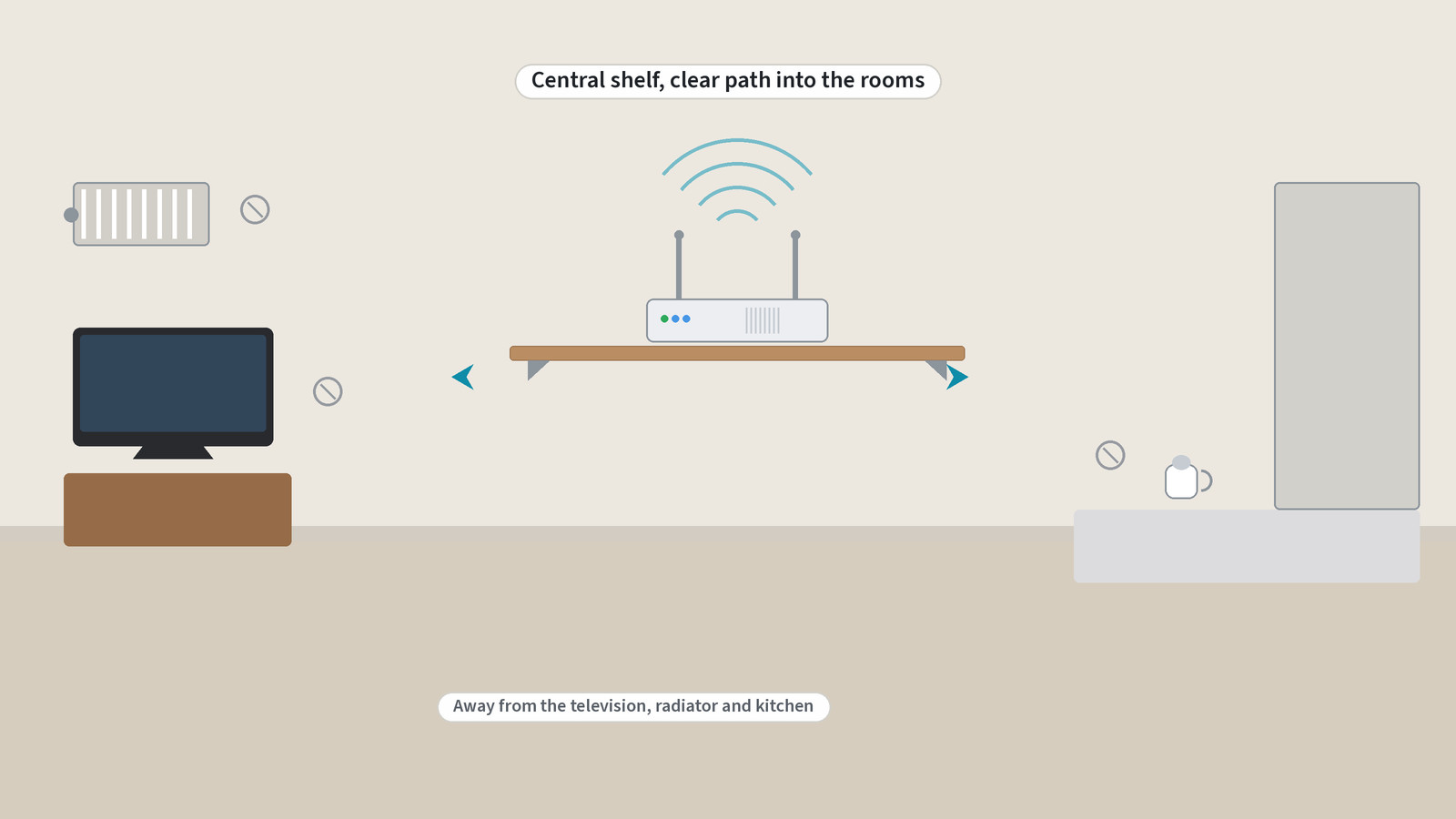
Placement costs nothing, and it should come before you buy anything. Ofcom's guidance is to put the router roughly in the centre of the home, out in the open, and off the floor, for example on a shelf. A box on the floor wastes signal into the ground, and a box against an outside wall sends some of it into the street.
Keep the path to your devices as clear as you can. Brick walls, water, metal and glass all block the signal, so avoid sitting the box behind a radiator, a bookcase, a fish tank or a large TV. Keep it away from electrical equipment that can interfere, including microwave ovens, baby monitors, cordless phones, fairy lights and speakers. If the router has adjustable aerials, point them in different directions, for example one vertical and one horizontal.
If a device does not need to move, a wired Ethernet connection is usually faster and more reliable than Wi-Fi. If your router still plugs into a telephone socket, Ofcom says to use the main socket rather than an extension where you can.
For the longer official checklist, see Ofcom's guide to improving your Wi-Fi experience.
 ## When to replace it
You do not need to replace a router on a fixed schedule. Ofcom says that if you have an older model, or frequent disconnections, you could benefit from upgrading. The first call should be to your provider, who might send a newer router, though some charge for this.
Ofcom also recommends leaving the router, any mesh or booster units, and the fibre connection box switched on so they can receive automatic updates. If a box no longer receives updates, or your provider says it is no longer supported, that is a strong reason to swap it. Other signs include a good wired speed at the socket or ONT but poor Wi-Fi nearby. Test more than once, at different times of day, before you buy anything.
If coverage is the only issue and the router is otherwise fine, a better position or a mesh system may be a better next step than a like-for-like swap.
Compare deals on Broadband Provider
The router only shares the connection you already have. If the line itself is the limit, compare a more suitable broadband package first.
You can compare broadband deals on Broadband Provider. If you are moving to full fibre, the router will usually plug into an ONT rather than a telephone socket, so allow for that change when you think about equipment.
More on speed and wi-fi
- How to log into your router to check your connection stats (UK guide)
- What broadband speed do you actually need? a UK household guide
- Does house wiring affect broadband speed? a UK guide to internal wiring and slow connections
- Broadband not reaching every room? Mesh, extender or access point
- What's the fastest broadband anywhere in the UK?
- Broadband Upload Speeds Explained

Paul Madden
Paul founded Broadband Provider to give UK households an independent, commercially-transparent guide to home broadband. He sets the strategy for the site, approves every story before it is published, and has final editorial sign-off on reviews, guides and corrections.
He also oversees commercial partnerships, running affiliate partnerships and advertising separately from editorial decisions. Commercial terms never influence how deals are ranked or what a review says.